How to get your session cookies (and where to paste them)
To export private or login-gated content, ExportComments authenticates as you using your own session cookie. Here's the one-click way, the manual way, and exactly which cookie each platform needs.
Some content is public, some is behind a login. To export the login-gated stuff — private posts, members-only groups, follower-only profiles — ExportComments has to authenticate as you, and the way it does that is with your own session cookie.
What is a session cookie?
A session cookie is a short string of text a website hands your browser when you log in. Your browser sends it back on every request so the site remembers it's you and doesn't ask for your password again. Pasting that one value into ExportComments lets the exporter see exactly what your own logged-in account can see — nothing more.
Your privacy stays intact:
- ExportComments never sees your password or your email address — a session cookie contains neither.
- The cookie only grants the same access your own account already has.
- It stops working the moment you log out of that website, so you stay in control.
The easy way: auto-fill with the Chrome extension
You almost never need to dig through developer tools by hand anymore. The free ExportComments Chrome extension reads the right cookie from your already logged-in browser session and fills it in for you — one click, nothing to copy or paste.
- Install the Chrome extension and make sure you're logged in to the platform (Facebook, Instagram, etc.) in the same browser.
- Paste your URL on ExportComments.com and open Advanced Mode → Authentication.
- You'll see an “Auto-fill cookies with our extension” banner with a one-click button. Click it and the cookie fields fill themselves.
- Click Start Export Process.
If you'd rather not install anything, the manual method below works in any browser.
The manual way: copy the cookie yourself
This walkthrough uses Chrome, but the steps are nearly identical in Firefox and Safari (enable the Develop menu first).
Step 1: Open the site you're logged in to
Open a new tab and go to the website whose content you want to export — and make sure you're logged in.
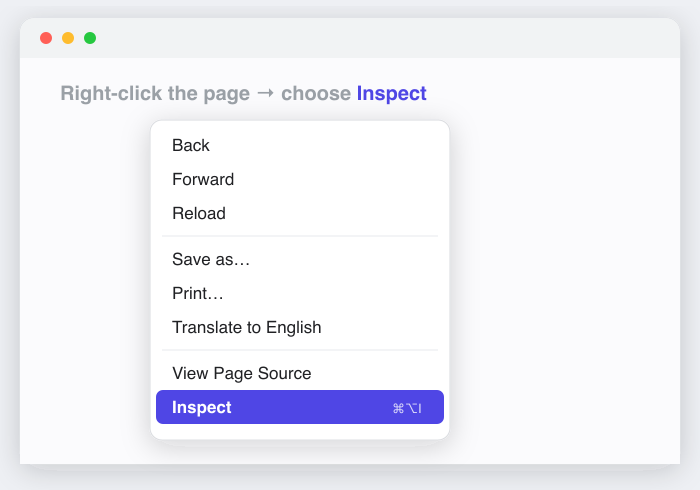
Step 2: Open the developer tools
Right-click anywhere on the page and choose Inspect (or press F12 / Cmd + Option + I).
Step 3: Go to the Application tab
In the developer tools, find the Application tab (in Firefox it's Storage).

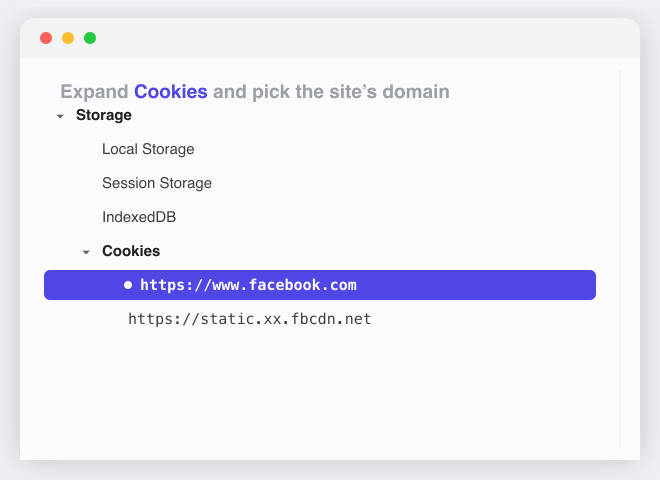
Step 4: Expand Cookies and pick the site
In the left sidebar, expand Cookies and click the site's domain (e.g. https://www.facebook.com).
Step 5: Find your cookie and copy its value
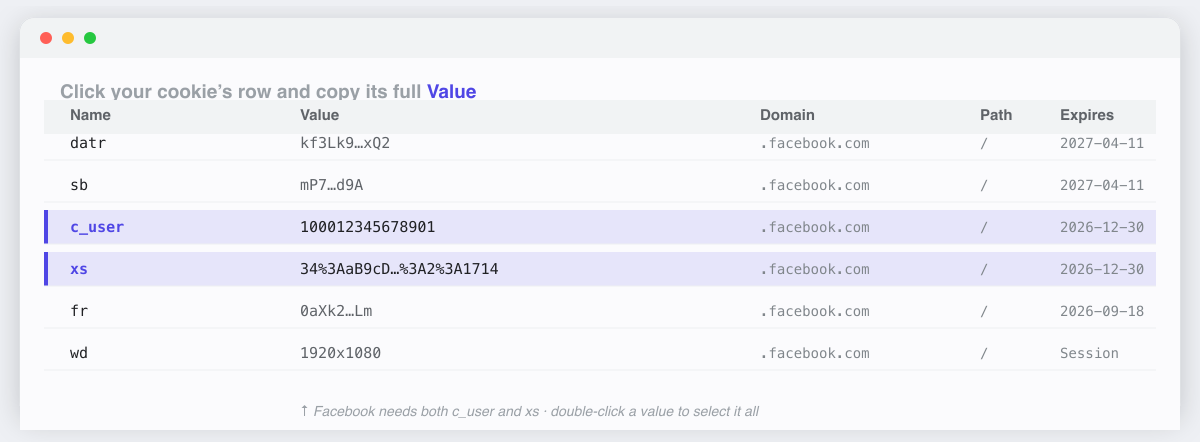
Use the table below to find the exact cookie name your platform needs. Click that row, then copy the full Value (double-click the value cell to select it all).
Step 6: Paste it into ExportComments
Back on ExportComments.com, paste your URL, open Advanced Mode → Authentication (“Required for private content”), and paste the value into the matching field. Then click Start Export Process.
Which cookie does each platform need?
The Authentication panel shows the right field(s) automatically once it detects your URL's platform. Here's exactly what to copy:
- Facebook — two cookies:
c_userandxs. Needed for private posts and groups. - Instagram & Threads — one cookie:
sessionid. Without it, Instagram exports are capped at roughly 50 results. - X / Twitter — one cookie:
auth_token. - TikTok — one cookie:
sid_guard(enhanced access). - LinkedIn — one cookie:
li_at. Needed for profile data. - Discord — your authorization token (not a normal cookie). The Chrome extension grabs it automatically as long as a Discord tab stays open in the same browser — this is by far the easiest route for Discord.
Is this safe for my account?
Authenticating with your own cookie is the same trust level as staying logged in on your own computer — but a few sensible notes:
- Only ever paste your own cookies, for accounts you control.
- On Facebook in particular, the app warns: “Using your own cookies may affect your Facebook account. Use responsibly.” Heavy automated activity on any platform can trigger rate limits, so keep exports reasonable.
- Logging out of the source website invalidates the cookie immediately. If you ever want to revoke access, just log out and back in.
- For higher volume or recurring jobs, pair authentication with Proxy or VPN options (Premium and Business plans) to spread requests.
Common workflows
- Export a private Facebook group's comments — add
c_user+xs, paste the group post URL, export to Excel. - Pull all comments from your own Instagram posts — add
sessionidto lift the ~50-result cap and capture the full thread. - Archive a Discord channel — keep Discord open, let the extension grab your token, export the channel history.
- Schedule a recurring authenticated export — cookies you've used are remembered for scheduled exports so the job keeps running on its own.
Plan limits & API access
Results per export by plan: Free 100 / Personal 5,000 / Premium 50,000 / Business 250,000. See Pricing. The same cookie fields are available via the REST API (Premium and Business) under options.cookies — e.g. sessionid, cookie_user, cookie_xs, auth_token.
FAQ
- Do I have to do this for every export?
No. ExportComments remembers the last cookie you used per platform and pre-fills it, including for scheduled exports. You only need to refresh it if it expires. - Why did my cookie stop working?
Session cookies expire, and they're invalidated when you log out or change your password. Just grab a fresh value and paste it again. - Does ExportComments get my password?
No. A session cookie does not contain your password or email — only a token that proves you're logged in, with the same access your account already has. - Can I export private content without a cookie?
No. Public content needs no authentication, but anything behind a login (private profiles, members-only groups, follower-gated posts) requires your session cookie so the exporter can act as you. - Extension or manual — which should I use?
Use the Chrome extension if you can; it's one click and avoids copy/paste mistakes. Use the manual method if you're on Firefox, Safari, or prefer not to install anything. - I have multiple results / URLs to export at once.
Bulk URL upload processes each URL as a separate export and bundles the resulting files into one ZIP (one file per URL). Authentication applies per platform across the batch.